

A reliable computer is something I often take for granted—until small problems start appearing one after another. My PC didn’t suddenly stop working, but random slowdowns, unstable device connections, and occasional glitches made everyday tasks more frustrating than they should have been. I wanted a solution that required minimal effort while helping my system stay dependable over time. That’s when I started searching for a reliable driver updater, and my experience with Driver Booster completely changed how I maintain my computer.
Why My Computer Started Feeling Unreliable
The first time I realized something was wrong was during an important online meeting. My Bluetooth headset cut out twice, the audio got scrambled, and my internet connection dropped out for a few seconds. I did get back on but it was annoying, and I wondered what was wrong with my computer.
In the following weeks, I saw some more minor issues. Some programs took longer to open, my printer was sometimes not recognized and Windows felt less reactive after updates. None of these problems were bad enough to prevent me from working, but collectively they made my computer seem unstable. I never knew when another little trouble would turn up.
Like most users, I thought the problem was caused by too many background applications or not enough storage space. I deleted temp files, dumped software I don’t use, and even ran a malware scan. These steps helped my system a little but did not fix the random hardware issues I kept having.
After some research into possible causes, I found that old drivers often cause these kinds of problems. Drivers are what allow Windows to communicate with hardware devices and when they are out of date, that communication can become unstable. It can cause compatibility issues, unstable device connections and erratic system performance. And that’s when I realized I needed a better way to manage my drivers than manually updating them.
Features That Made Driver Maintenance Easier
Automatic Driver Scanning
The first thing that stood out to me was how Driver Booster just scanned my whole system on its own. I didn’t have to poke around and check every piece of hardware—it found all the outdated, missing, and broken drivers right away.
One-Click Driver Updates
Dealing with driver updates one at a time gets old fast. With Driver Booster, I just hit “update,” and it handled all the drivers together. It saved me a ton of time and hassle.
Extensive Driver Database
What really impressed me was the more than 18 million drivers this thing covers. Graphics cards, audio gear, network stuff, Bluetooth—you name it, the software recognized it and looked for updates. I didn’t have to hunt anything down.
Restore Point for Added Safety
Before updating, the software always made a restore point. So if something went sideways, I could just roll everything back. That made the whole process feel a lot safer.
How I Brought My PC Back to Life with Driver Booster
My computer was acting up, and after a bit of digging, I realized old drivers were probably behind most of the trouble. I figured I’d give Driver Booster a shot. Getting started was a breeze—I downloaded it from IObit’s website and installed it without any headaches. The whole process took just a few minutes, and honestly, the interface looked friendly enough for anyone to use.
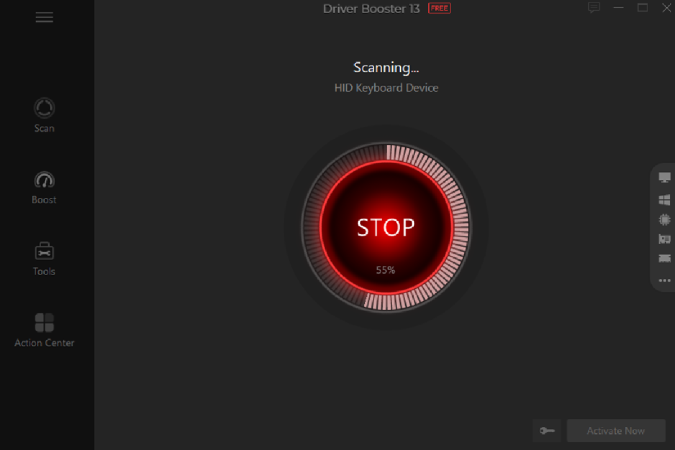
First, I let Driver Booster scan my system. All it took was one click. The software checked everything—graphics, sound, network, Bluetooth, chipset—you name it. It quickly pulled up a list of old or missing drivers I didn’t even realize I was neglecting.
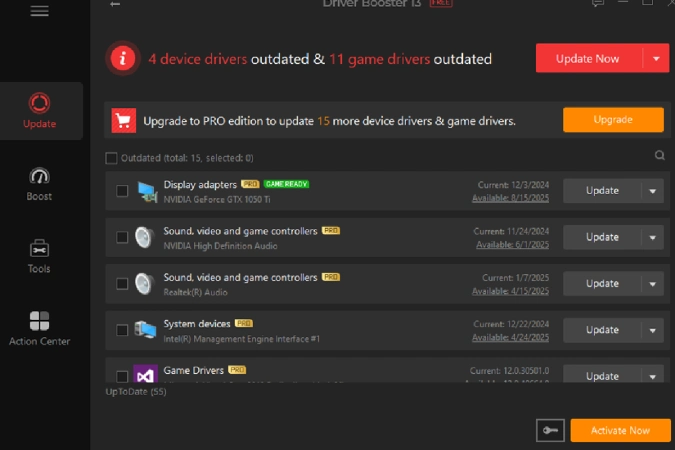
I checked out the results, which were all neatly listed in a single dashboard. That made it easy to see what needed fixing without jumping from one manufacturer’s website to another trying to track things down.
Then I hit “Update NOW,” and Driver Booster took over. No need for me to chase down every single download; the software updated everything in one go. That saved me so much time—and a lot of hassle.
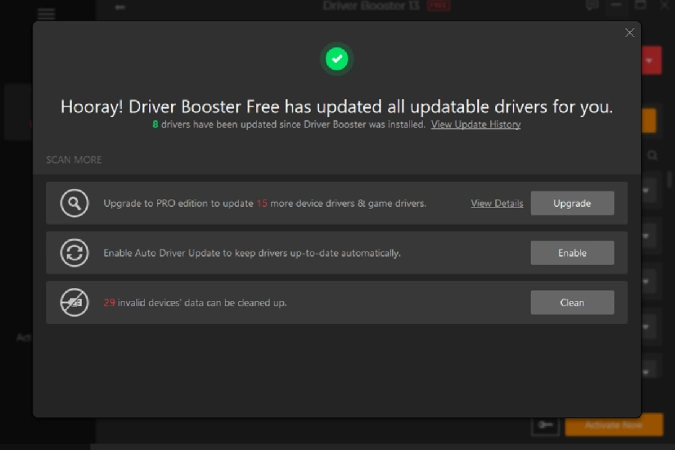
Once the updates finished, I restarted my computer to let everything settle in. I also turned on automatic driver checks, so now Driver Booster lets me know when something’s out of date. Keeping my drivers fresh isn’t a chore anymore—it’s just something that happens in the background.
The Difference I Noticed After Updating My Drivers
Right away, I noticed things like faster startups, steady internet and network connections, and my Bluetooth and audio devices just worked every time. Graphics smoothed out, so the little display hiccups disappeared. Windows updates stopped causing random problems, and those annoying errors or hardware issues barely showed up anymore. I wasn’t wasting time troubleshooting the same old problems.
Honestly, each fix by itself seems minor, but all together? Huge difference. Now, my computer just works—whether I’m working, jumping into a video call, streaming a show, or doing anything else. I can finally focus on my tasks instead of stressing about tech headaches popping up out of nowhere.
Why Keeping Drivers Updated Matters
Before this experience, I only thought about drivers when something stopped working. Now I understand that keeping them updated is an important part of preventive PC maintenance. Drivers act as the link between Windows and your hardware, so outdated versions can lead to compatibility issues, reduced stability, and inconsistent device performance.
Regular driver updates offer several benefits:
- Improve compatibility with the latest Windows updates and software.
- Enhance system stability by reducing driver-related errors and crashes.
- Fix bugs and known issues released by hardware manufacturers.
- Support better hardware performance for graphics, audio, networking, and other devices.
- Reduce troubleshooting time by preventing problems before they become noticeable.
By keeping my drivers updated, I no longer worry about hidden driver issues affecting my computer. Instead of reacting to unexpected problems, I can focus on my work knowing my system is running with the latest compatible drivers.
Final Thoughts
But updating my drivers really changed things. Driver Booster took something I used to put off and made it easy. I liked how it automatically scanned for updates and let me handle everything with just a click. Plus, it created restore points, so I never had to worry if something went wrong.
Honestly, if you want your Windows PC to behave itself, regularly updating your drivers is a no-brainer. For me, using a driver updater made the whole process simple and hassle-free. I finally got the reliability I’d been missing.
